
PC Builds
PC and Phone Backups: Contacts, Messages, Cloud Storage and Reset Checks
The short answer
Make more than one checked copy before a reset or move. Cloud sync, Android device backup and a file copied to a PC cover different data and have different recovery limits.
Last updated October 2026
What's covered7
A phone backup is useful only if it contains what you need and you can restore it. Start by listing contacts, photos, messages, downloaded files and important app data. Do not assume that one sync switch covers everything.
Android contacts, SMS and call history
Google's Android backup guide describes supported backup of contacts, messages, call history and other device data. Coverage varies with apps, Android version and device setup. Not every app can restore all its data.
Inspect the backup settings on your phone and check the account, categories and last successful backup. Use the supported back-up-now option when available. Google notes that restoration differs by version and that a newer-version backup cannot be restored to an older Android version.
For contacts, check whether they are saved in the account, on the device or in another service. If using an export, keep it privately and inspect that the expected contacts are present. A contact export is sensitive personal data, not a file to share publicly.
Copy phone files to a PC
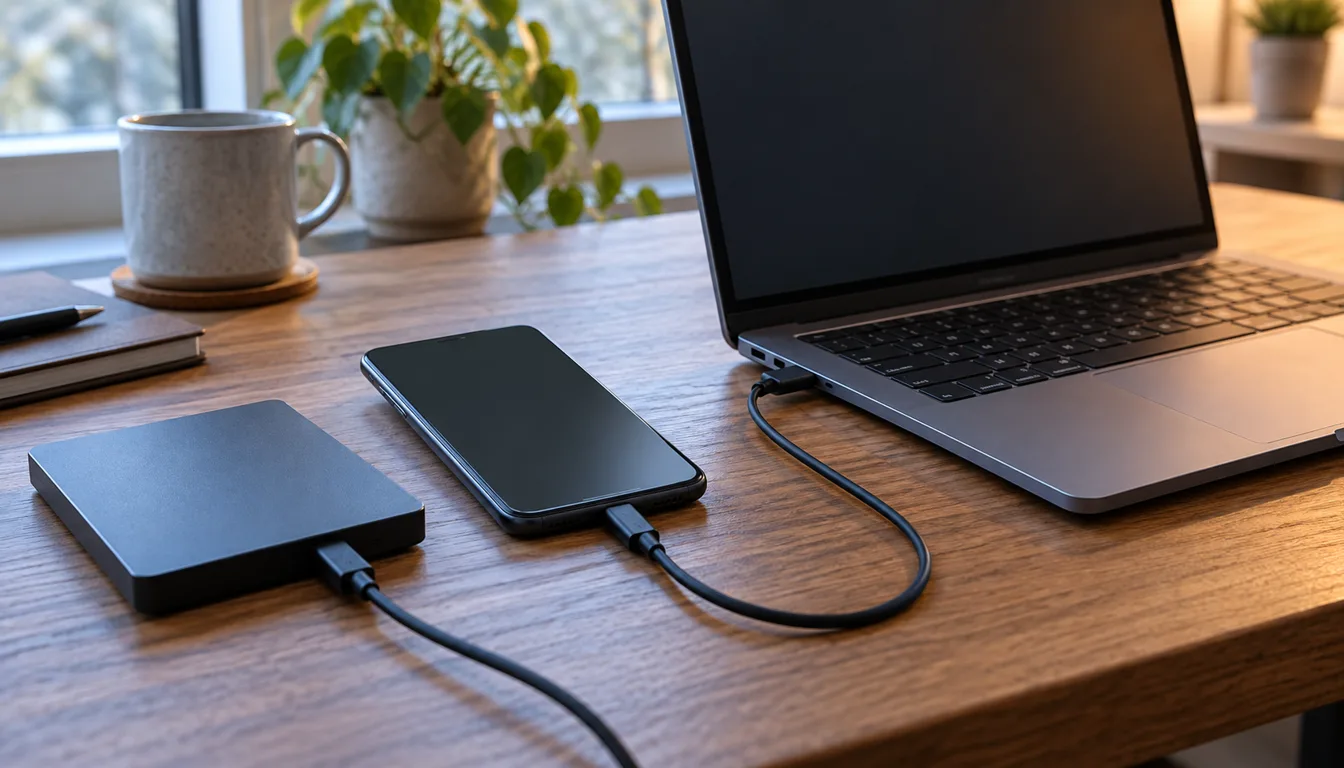
Google's file-transfer guide describes USB transfer. Use a cable that carries data, unlock your phone and select the supported file-transfer mode. Charging alone does not prove the PC can access files.
Copy photos, documents and downloads to a clearly named folder. Open a sample on the PC and compare the expected folders. USB file access does not expose every app's private database. For messages or chat history, use the app's own supported backup and restoration route rather than assuming a copied folder contains it.
Our PC build and setup guide helps with the computer side. Keep another independent copy if the files matter; a phone and a laptop can both be lost together.
Dropbox, Google Drive and OneDrive
Cloud file sync keeps chosen files available across devices. It is not the same as a complete phone backup. Changes and deletions can synchronize too. Check version history, deleted-file recovery and the retention limits of your account.
Google Drive: Google describes a free allowance of up to 15GB shared across Drive, Gmail and Photos in its storage guidance. That is not 15GB dedicated only to your PC files.
OneDrive: Microsoft's storage-quota page separates its 5GB free cloud-storage allowance from Outlook mailbox storage. Check the account you actually use and how much is occupied.
Dropbox Basic: consult Dropbox's Basic plan explanation for its 2GB starting allowance and account limits. Promotional or earned space can make an individual account different.
These figures are the providers' published free-plan context checked for October 2026. Terms can change. Compare your actual account allowance, file types, supported devices, sharing controls and recovery needs before choosing.
Sync is not your only backup
Keep a separate version of important files outside the live synced folder. Check that it opens. Before a major change, copy the files you would regret losing and make sure you know which account owns the cloud copy.
For a student machine, choose the laptop for the course and its storage needs. For a secondhand desktop, use our used-PC checks before trusting its current setup with your only copy.
Before formatting or factory-resetting an Android phone
A factory reset removes local data and settings; it is not a promise that every copy everywhere has been erased. Cloud copies, removable storage and other devices need separate decisions. Google's reset guidance explains prerequisites and account checks.
Before resetting, confirm Google account access, screen-lock information and the backup state. Keep another way to complete multifactor sign-in. When transferring a phone, use the manufacturer's procedure for that model and make separate decisions about cloud copies and removable storage.
WhatsApp GIFs and PDF files
GIF animations and PDF documents are files you may want to preserve, but a visible conversation is not itself proof that its attachments are backed up. Use WhatsApp's Help Center for the app's current chat and media backup instructions, then verify files important to you. Do not upload private conversations to an unknown conversion service.
Keep an unchanged copy of an important PDF alongside any converted file. Open both on the destination PC and check the pages you need, including diagrams and searchable text. Preserve important GIF attachments as files too, and test that the copied animation opens before deleting the phone copy.
Test restoration before you need it
Find a small noncritical file in the backup and restore a copy to another folder. Check it opens. Confirm the app-specific restoration path separately. A successful sync status is useful, but it is not proof that every item on your list can be recovered.
For Android changes beyond normal settings, understand rooting risks and supported alternatives.