
PC Builds
PC Build Guide: How to Choose Every Part and Make Sure It Fits
The short answer
Choose the graphics card first, then the processor and a matching motherboard, then memory and storage, and finally the power supply and the case, with a cooler to match. At each step, check the one thing that has to match the part before it: socket, memory type, size, connectors and wattage. A compatibility checker catches most mistakes, but measure GPU length and cooler height yourself.
Last updated September 2026
| Pick first | Graphics card, because it decides gaming performance |
|---|---|
| Must match the CPU | Motherboard socket and chipset |
| Must match the motherboard | Memory type (DDR4 or DDR5) and form factor |
| Must match the GPU | Power supply wattage and connectors, case clearance |
| Check by hand | GPU length, cooler height, radiator fit |
Scroll for more →
What's covered25
- The Parts You Need
- Step 1: Choose the Graphics Card
- Step 2: Choose the Processor
- Step 3: Choose the Motherboard
- Step 4: Choose the Memory
- Step 5: Choose the Storage
- Step 6: Choose the Power Supply
- Step 7: Choose the Case
- Step 8: Choose the CPU Cooler
- PC Build Guide Compatibility Checklist
- Sample Builds by Goal
- How Much to Spend on Each Part
- Future-Proofing Your Build
- Peripherals and Extras
- Where to Buy Your Parts
- Build Tools and Workspace
- Which Parts Can You Reuse in a Build?
- Common Questions About Choosing Parts
- Intel or AMD for a Gaming Build?
- When to Upgrade Instead of Rebuild
- Don't Forget the Operating System
- Common Part-Picking Mistakes
- When You Are Ready to Build
- Planning Your Build in One Page
- Verdict: What This PC Build Guide Comes Down To
This PC build guide covers the part most people find hardest: choosing the parts. Assembly is a matter of following steps. Picking parts that all work together is where builds go wrong.
Short answer: choose the graphics card first, then the processor and motherboard, then memory and storage, and finally the parts that hold and power it all. At each step, check the one detail that must match what you already chose. Then measure GPU length and cooler height yourself.
This guide is part of our PC builder hub. Plan your budget there first with our planner, then use this guide to fill in each part.
NVIDIA's RTX 50 series page lists the current desktop graphics cards and their specs.
The Parts You Need
| Part | What it does | The key match |
|---|---|---|
| Graphics card (GPU) | Draws the game | Power supply and case size |
| Processor (CPU) | Runs everything else | Motherboard socket |
| Motherboard | Connects all parts | CPU socket, memory type, case size |
| Memory (RAM) | Short-term workspace | DDR4 or DDR5, as the board needs |
| Storage (SSD) | Holds Windows and games | M.2 slot on the board |
| Power supply (PSU) | Feeds power | Wattage and GPU connectors |
| Case | Holds and cools it all | Board size, GPU length, cooler height |
| CPU cooler | Keeps the processor cool | Socket support and height |
Scroll for more →
You will also need Windows, a monitor, a keyboard and a mouse.
Step 1: Choose the Graphics Card
Start here, because the GPU decides what you can play. Match it to your monitor:
- 1080p gaming: RTX 5060 or Radeon RX 9060 class.
- 1440p gaming: RTX 5070 to RTX 5070 Ti, or a Radeon RX 9070 class card.
- 4K or high refresh 1440p: RTX 5080 and above.
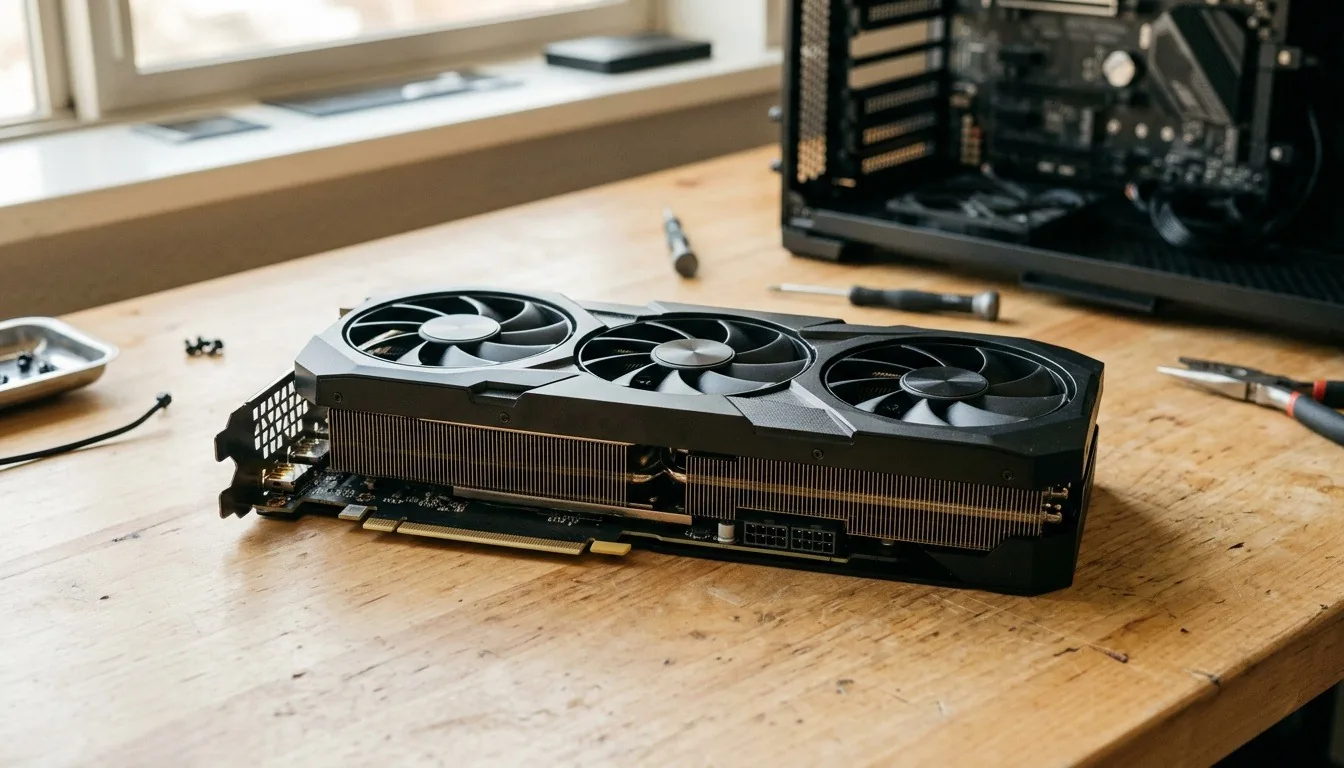
Note two numbers from the card's spec page: its length, which the case must fit, and the maker's recommended power supply wattage.
Step 2: Choose the Processor
Compare processors for your games and target settings, then include the motherboard and cooler in the cost. Our gaming CPU compatibility guide explains socket, BIOS, memory and cooling checks. Use AMD's Ryzen desktop processor page to confirm the exact candidate's specifications.
Note the processor's socket, such as AM5 for current AMD chips or LGA1851 for current Intel Core Ultra chips. Also note whether it includes a cooler, since many don't.
Step 3: Choose the Motherboard
The motherboard must match the processor's socket. Then check:
- Chipset. It sets features like overclocking and the number of fast ports. Mid-range chipsets suit most builds.
- Form factor. ATX, micro-ATX or mini-ITX. It must fit your case.
- Memory type. Most new boards take DDR5. Some older boards take DDR4.
- M.2 slots. How many SSDs you can add.
- Wi-Fi and ports. Choose a board with Wi-Fi if you can't run a network cable.
Step 4: Choose the Memory
Buy the memory type your motherboard supports. For gaming, 16GB is enough and 32GB is better for streaming or editing. Buy it as a matched kit of two sticks, such as 2 x 16GB, so it runs in dual-channel mode.
Speed matters a little. Look for a kit with an EXPO or XMP profile, which lets the motherboard run it at its rated speed with one setting.
Step 5: Choose the Storage
A 1TB NVMe SSD is the comfortable minimum for a gaming PC. PCIe Gen 4 drives are fast and good value. Gen 5 drives are faster but cost more and matter little in games today. Add a second drive later if you need space.
Step 6: Choose the Power Supply
The power supply feeds every part, so never cut corners here.
- Wattage. Follow the GPU maker's recommendation. Most mid-range builds suit 650W to 750W; high-end GPUs can need 850W or more.
- Efficiency. Look for an 80 PLUS rating. Gold is a good target.
- Connectors. High-end cards may need the 12V-2x6 connector. ATX 3.0 and 3.1 units include it.
- Size. Standard ATX for most cases; SFX for small cases.
- Modularity. Modular cables make building tidier.
Step 7: Choose the Case
The case must fit your motherboard size, graphics card length and cooler height. For airflow, choose a mesh front with at least two included fans. Our gaming desktop chassis guide compares good options.
Step 8: Choose the CPU Cooler
If your processor doesn't include a cooler, or you want a quieter one:
- Tower air coolers are reliable and good value. Check the height against the case.
- Liquid coolers (AIOs) move heat to a radiator. Check that the case supports the radiator size, such as 240mm or 360mm.
Make sure the cooler supports your socket.
PC Build Guide Compatibility Checklist
Before you order, confirm every line:
- CPU socket matches the motherboard socket.
- Memory type (DDR4 or DDR5) matches the motherboard.
- Motherboard size fits the case.
- GPU length fits the case's maximum.
- Cooler height fits the case, or the radiator fits its mount.
- Power supply wattage meets the GPU maker's recommendation.
- Power supply has the connectors your GPU needs.
- Power supply size (ATX or SFX) fits the case.
- The motherboard may need a BIOS update for newer processors; check the maker's support list.
A part-picker tool such as PCPartPicker checks many of these automatically. Measure GPU length and cooler height yourself anyway, because clearances vary with fans and cables.
Sample Builds by Goal
These show how the parts fit together by tier. We don't list prices, because they change daily. Use our PC builder planner to turn your budget into targets.
| Part | 1080p budget | 1440p balanced | High refresh 1440p |
|---|---|---|---|
| GPU | RTX 5060 or RX 9060 | RTX 5070 | RTX 5070 Ti or RTX 5080 |
| CPU | Six-core, such as Ryzen 5 | Six to eight-core | Eight-core, often an X3D chip |
| Motherboard | Entry B-series board | Mid-range board with Wi-Fi | Mid to upper board with more M.2 slots |
| Memory | 16GB DDR5 (2 x 8GB) | 32GB DDR5 (2 x 16GB) | 32GB DDR5 (2 x 16GB) |
| Storage | 1TB Gen 4 NVMe | 1TB to 2TB Gen 4 NVMe | 2TB Gen 4 NVMe |
| Power supply | 550W to 650W, 80 PLUS Bronze or better | 750W, 80 PLUS Gold | 850W, 80 PLUS Gold, ATX 3.1 |
| Case | Mesh-front mid-tower | Mesh-front mid-tower, three fans | Airflow mid-tower with 360mm radiator support |
| Cooler | Included or basic tower cooler | Tower air cooler | Large tower or 240mm to 360mm liquid cooler |
Scroll for more →
For a full budget example, see our budget PC build guide.
How Much to Spend on Each Part
The graphics card should get the largest share of a gaming build, roughly two fifths of the money. The processor gets about a fifth. The core parts split most of the rest, with the case and cooler taking the smallest shares. Our PC builder planner turns your total budget into a target for each part, so you know where to look before you compare products.
Future-Proofing Your Build
You can't predict every future game, but you can make upgrades easy.
Choose a current platform, such as AM5, that supports newer processors. Buy a power supply with some spare wattage. Pick a case with room for a longer graphics card and more fans. And choose a motherboard with a spare M.2 slot for a second SSD. Each of these costs little now and saves money later.
Peripherals and Extras
Budget separately for a monitor and accessories. Match the monitor to the GPU: 1080p at 144Hz or faster for RTX 5060 class cards, and 1440p for RTX 5070 and up. You will also need a Windows license and a USB stick for installation.
Where to Buy Your Parts
Buy each part from a seller with a clear return window, so a part that arrives damaged or doesn't fit can go back. Keep the boxes until the PC has run well for a couple of weeks. Register the warranty on the motherboard, graphics card and power supply with their makers. That makes a later claim much easier.
Build Tools and Workspace
You need less than you might think. A Phillips #2 screwdriver covers almost every screw. Add a flashlight, a few small bowls for screws, and cable ties or Velcro straps. Work on a hard, clear table rather than carpet. Keep the motherboard manual open, because it shows where every cable goes.
Which Parts Can You Reuse in a Build?
Check each part before planning to reuse it. Measure case clearance, inspect the power supply and confirm its connectors and capacity against the new parts. Match drives to the board's supported interfaces. DDR4 and DDR5 require different slots, and a processor needs a board whose support list names that chip.
Common Questions About Choosing Parts
Motherboards. You don't need an expensive one. A mid-range board with the ports and Wi-Fi you need is enough for most gaming builds. Premium boards add features like extra fast ports and stronger power delivery for heavy overclocking.
Liquid or air cooling. Liquid is not always better. A good tower air cooler is quiet and reliable, and has no pump to fail. Liquid coolers suit high-end processors and small cases where a tall cooler won't fit.
Gen 5 SSDs. Buy one only if you move very large files often. For games, a fast Gen 4 drive loads almost as quickly and costs less.
Intel or AMD for a Gaming Build?
Both make excellent gaming processors. AMD's AM5 platform has a strong track record of supporting several generations of chips on the same socket, which makes upgrades simple. AMD's X3D chips, with their extra cache, are popular for high frame rate gaming. Intel's current Core Ultra chips are strong all-rounders. For most builders, the better choice is whichever gives the best gaming performance for the budget on the day you buy.
When to Upgrade Instead of Rebuild
Identify the limit in your current games before replacing the whole PC. Check whether a graphics-card upgrade fits the case, power supply and workload. Compare its complete cost with a rebuild when the processor platform also needs changing.
Don't Forget the Operating System
A new build has no operating system. You can download Windows 11 from Microsoft and activate it with a license key. Check the Windows 11 system requirements page if you reuse older parts.
Common Part-Picking Mistakes
Mismatched socket. The most common error. Always check CPU and motherboard sockets match.
Wrong memory type. DDR4 won't fit a DDR5 board, and the reverse.
A weak or no-name power supply. It is the part most likely to fail and take others with it.
A GPU that doesn't fit. Measure clearance, including front fans or radiators.
Overspending on the motherboard. Premium boards add features most gamers never use.
Forgetting the cooler. Many processors don't include one.
When You Are Ready to Build
Once your parts arrive, our how to build a gaming PC guide walks through assembly step by step, from installing the processor to the first boot.
Planning Your Build in One Page
Write your part list in a simple table before you buy. List each part, its key match, such as the socket or the wattage, and its price at the time you plan. Check every key match against the parts above and below it. Then run the list through a part-picker tool, measure the tight spots, and order.
Verdict: What This PC Build Guide Comes Down To
This PC build guide comes down to one order of choices. Choose the graphics card first, then a processor that keeps up with it, a motherboard that matches the socket, memory that matches the board, and a power supply and case that fit everything. Run through the compatibility checklist before you order, measure the tight spots yourself, and never cut corners on the power supply. With the right parts in hand, the build itself is the easy part.
For a multi-card system, understand SLI and CrossFire support.
Before replacing the operating system, plan a supported Windows installation.
For the screen connected to this computer, check monitor connections and display needs.
Once the machine is set up, choose Windows protection for your needs.
For a desktop with limited upgrade money, check an affordable graphics-card upgrade.
If the graphics card is the main upgrade, weigh a mid-range GPU purchase.
If the connection slows down during games, check your router and Wi-Fi setup.
Before adding a VPN subscription, understand VPN privacy and gaming trade-offs.
For a storage upgrade, check SSD types and storage compatibility.
Before moving files or resetting a device, verify phone and cloud backups before a move.
For a graphics card that also handles everyday work, choose graphics-card features for your workload.
Before ordering memory or a processor, check motherboard support and RAM upgrades.
For Android changes beyond normal settings, understand rooting risks and supported alternatives.
FAQ
In what order should I choose PC parts?
Start with the graphics card, since it decides gaming performance. Then choose a processor that can keep up with it, a motherboard that matches the processor's socket, memory that matches the motherboard, and a power supply and case that fit everything.
How do I know if PC parts are compatible?
Check the processor socket against the motherboard, the memory type against the motherboard, the motherboard size against the case, and the power supply's wattage and connectors against the graphics card. A part-picker tool checks most of these automatically.
How much power supply wattage do I need?
Add up the processor and graphics card power, then add headroom. Most mid-range gaming builds are comfortable on a quality 650W to 750W unit. High-end GPUs can need 850W or more. Follow the graphics card maker's recommendation.
Do I need to buy Windows for a new PC?
Yes, a new build doesn't come with an operating system. You can install Windows 11 from Microsoft's website and activate it with a license key.
How much should I spend on a CPU cooler?
Enough to keep the processor quiet and cool. Many mid-range chips include a basic cooler that works. A tower air cooler is a cheap upgrade that runs quieter, and liquid coolers suit high-end chips or small cases.
Do I need a Wi-Fi motherboard?
Only if you can't run a network cable to your router. A board with built-in Wi-Fi saves buying a separate adapter. Wired Ethernet is steadier for online games.