
Components
Gaming Motherboard and RAM Buying Checks
The short answer
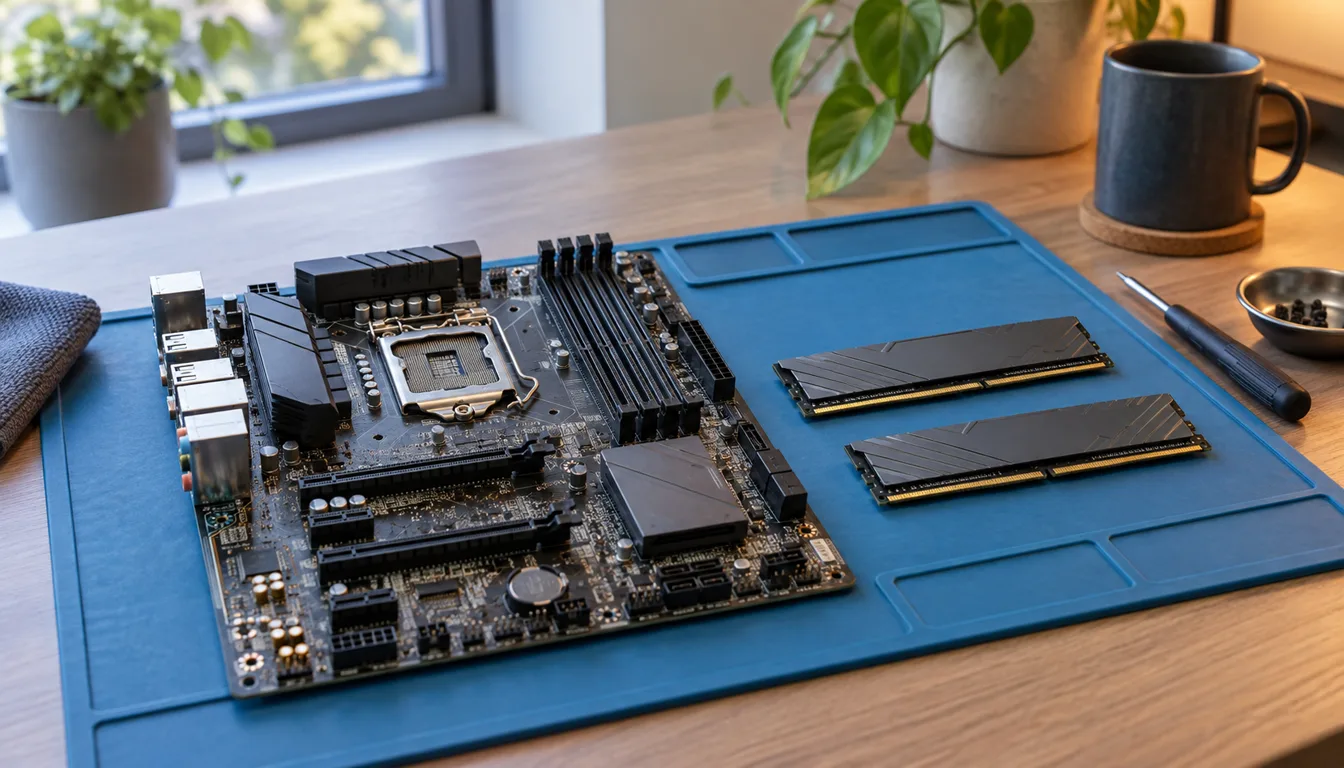
Choose the motherboard for the CPU and connections you need. Check its support list and manual before buying RAM; matching capacity alone does not establish compatibility.
Last updated October 2026
What's covered8
A motherboard connects the parts, but it does not make every matching-looking component compatible. Start with the exact CPU, case and connections. Then plan the memory and storage around the board's documented limits.
Socket, chipset and the CPU support list
Find the full motherboard model and hardware revision. Read the CPU support list for the exact processor and required BIOS. A matching socket is necessary but not sufficient. If the BIOS needs updating, check the supported method before buying.
Use ASUS's support center or the equivalent maker portal for the exact board. Product-family advertising is weaker evidence than the manual and supported-CPU table. Our PC build guide covers the complete compatibility sequence.
Size and usable connections
Check whether the case supports the board's form factor and mounting positions. Count the USB, audio, network and display connections you need. Motherboard display outputs normally depend on the CPU's supported integrated graphics; the presence of HDMI on the board is not proof that your chosen CPU can use it.
Read the lane and storage-sharing notes. Fitting a drive in one slot can disable another connector on some boards. Slot shape alone does not tell you the electrical lane count or what happens when several slots are filled.
Identify the RAM already installed
Use the OS's system information or memory view to check installed capacity. In Windows, Task Manager's Memory view can help identify speed and slot information, but the module label and board manual are the final checks. Software can report incomplete slot data.
Record the module part number, capacity, memory generation and form factor. Desktop DIMMs and laptop SO-DIMMs are different physical formats. Some small PCs use laptop-style modules and some machines have soldered memory. Do not infer a free upgrade slot from the case size.
Capacity: 8GB, 16GB or more?
There is no single result for every workload. Compare your apps' requirements and your memory use during normal work. An 8GB-versus-16GB test from an older game does not establish what a current game or editor needs.
If the computer frequently runs out of usable memory with your actual apps, a capacity upgrade may help. If it does not, more memory may make little difference. A browser with many tabs, a game and a local work project should be assessed together rather than one at a time.
Memory generation, speed and timings
DDR4 and DDR5 are distinct standards and are not interchangeable in a slot. Match the board and processor support. Kingston's memory information provides a manufacturer starting point for module types and compatibility selection.
Rated speed can depend on a profile rather than the default setting. Intel's XMP guidance describes its overclocking profiles. AMD's EXPO information describes AMD-oriented profiles. Check board and CPU support before expecting the advertised profile speed.
Timings and speed work together. A lower timing number by itself is not a complete comparison between kits running at different rates. Use a supported configuration first, then assess whether a faster kit matters to your workload.
Paired DIMMs and a matching kit
Use the manual's recommended slots for your module count. Check the board's supported kits, capacities and speeds before adding memory. Treat separately purchased modules as a compatibility check, even when their labels look alike, and verify stable operation after fitting them.
Read the qualified-vendor list for the actual part number, capacity and module count. A kit being absent is not proof it cannot work, but it means that list does not confirm it. Four modules can have lower supported speeds than two; AMD's Ryzen 5 9600X specification gives a concrete example of configuration-dependent memory limits.
Hardware and operating-system limits
Maximum usable memory depends on the board, CPU and OS edition. Check all three. Microsoft publishes Windows physical-memory limits. A supported module fitting the slot does not guarantee that the OS can use the full total.
Plan the purchase as a whole
Use the PC budget planner to include the CPU, board and kit together. Compare that total with a complete gaming PC if the existing machine needs many parts. Keep a record of the exact specifications and support pages, so the next upgrade starts with facts rather than another family-name guess.