
PC Builds
Choosing a Monitor: Gaming, Photo Editing, Mac Connections and HDR
The short answer
Choose a display mode your computer can drive, then check color needs, motion quality, ports and desk fit. HDR format support alone does not prove good HDR picture quality.
Last updated October 2026
What's covered10
- Gaming: resolution and refresh rate
- Cheap monitors and a budget below $200
- Photo editing: gamut, calibration and the room
- MacBook Pro, MacBook Air and Mac mini connections
- HDMI 1.4 versus 2.0, cables and USB-C
- Are dual monitors worth it?
- HDR10, HDR10+ and Dolby Vision
- PS4 Pro TVs and PlayStation VR
- Older monitor model notes
- A purchase checklist you can use
The best monitor depends on what you need to see. Competitive games favor clear motion. Photo work needs consistent color. A Mac connection must respect that exact Mac's display limits. Start with the job and the computer, then compare the panel.
Gaming: resolution and refresh rate
Higher resolution asks the GPU to draw more pixels. A higher refresh rate gives it more opportunities to display a new frame. Neither guarantees that a game reaches the panel's maximum. Choose realistic settings for the games you play and match the monitor to a gaming PC.
Adaptive sync can coordinate the display with changing frame delivery. AMD FreeSync and NVIDIA G-SYNC have different model and connection requirements. Check the display's certification, supported range, GPU and intended port using AMD's FreeSync information and NVIDIA's monitor records.
The response-time number on a box is not a complete motion test. Look for measurements that name the mode and show overshoot as well as transition speed. Check whether the fastest advertised setting introduces visible trails around moving objects.
Cheap monitors and a budget below $200
Treat $200 as a spending ceiling, not a claim that a particular model is available below it today. Count the stand, cable and any adapter. Check the return terms for dead pixels and visible defects. A simpler SDR display with reliable inputs can be a better fit than a cheap panel carrying an HDR label.
For a laptop, confirm the external output before choosing the screen. Our gaming-laptop comparisons cover the complete machine. Keep the display allowance separate in the PC budget planner.
Photo editing: gamut, calibration and the room
Gamut is the range of colors a display can reproduce. Accuracy is how closely it reproduces the intended colors. They are different. Wide gamut is useful only with a workflow that handles it correctly.
Adobe's color-management explanation describes why monitor profiles matter. Use a profile made for your display and current settings. Stable room lighting also matters: changing glare and brightness can change how an image looks even when the file stays the same.
For web delivery, check an sRGB workflow. For print, coordinate the working space, display and printer profile with the actual output process. A high-resolution display offers more detail, but does not replace calibration. If you also need a computer, compare photo-editing laptops or video-editing laptop choices.
MacBook Pro, MacBook Air and Mac mini connections
Apple's external-display guide says display count and available modes depend on the Mac model. Identify the exact year and chip. Older Retina MacBooks and newer Apple-silicon Macs do not share one set of limits.
Match the video protocol, not just the socket. A USB-C connector can carry different functions. Check for video support, the adapter's direction and the display's input mode. Charging and video are separate checks; a monitor's USB power output must also suit the laptop. On an older Mac mini, inspect its HDMI and Thunderbolt specifications rather than assuming a current USB-C cable will fit.
HDMI 1.4 versus 2.0, cables and USB-C
HDMI's 1.4b summary lists 3840 by 2160 at up to 30 Hz. Its specification history describes HDMI 2.0's 18 Gbps bandwidth and 4K at 60 frames per second. Those are specification capabilities, not promises for every device using that label.
Check each part of the connection: computer output, cable, adapter, switch and display input. Each must support the intended resolution and refresh rate. USB-C describes the connector shape; check your computer's manual for its video functions before buying an adapter. Apple's display guide above covers choosing a connection for a Mac.
Are dual monitors worth it?
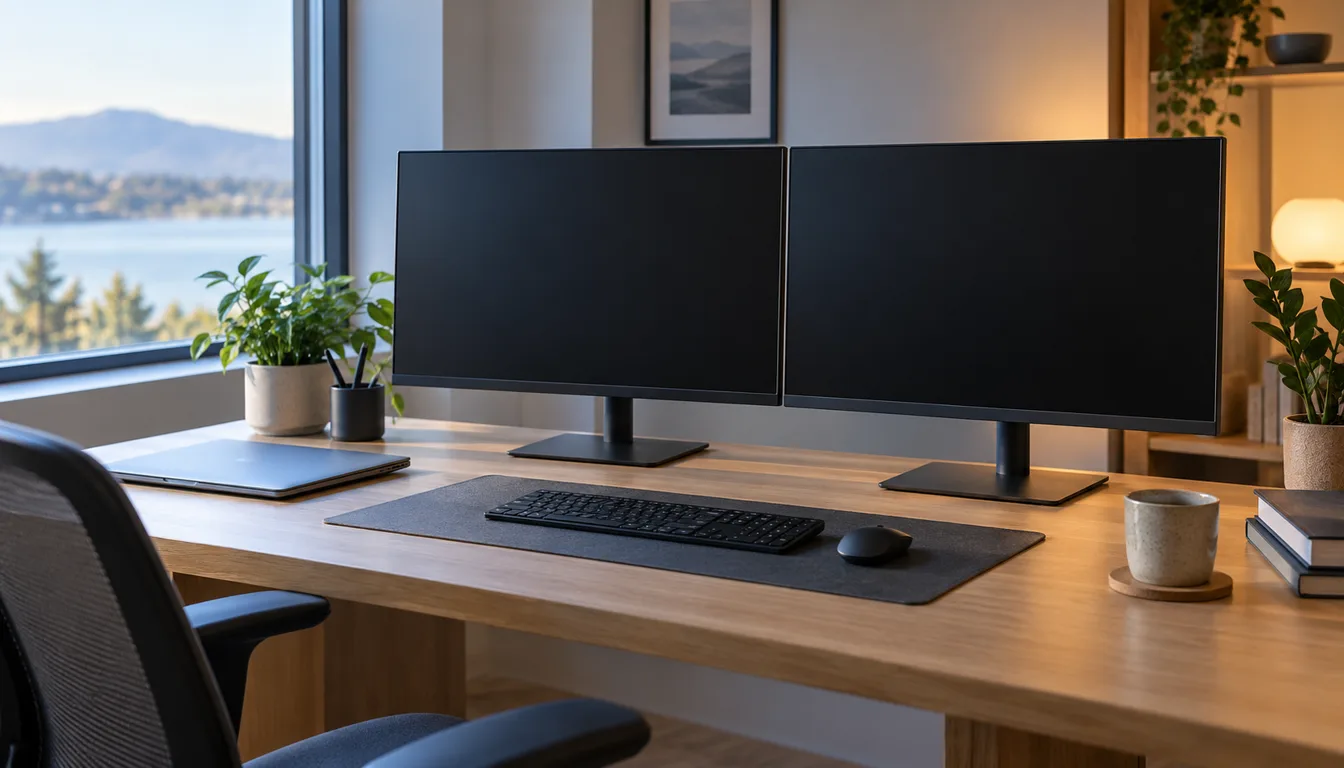
Two displays help when you keep a reference, chat, timeline or spreadsheet visible beside your main work. They also take desk space and can create mismatched scaling. Check display count, usable outputs and supported modes before ordering. Two sockets on a dock do not guarantee two independent displays on every computer.
Set the screens to extend the desktop if you want separate work areas. Duplicating mirrors content and can limit available modes. Microsoft's multiple-monitor guidance explains the Windows display choices. Try a sensible window arrangement on one large display before assuming two is essential.
HDR10, HDR10+ and Dolby Vision
HDR10 uses static metadata. HDR10+ adds dynamic metadata, described in the HDR10+ white paper. Dolby's metadata documentation explains Dolby Vision's own system. The movie or game, player, computer, cable path and display must work together. Do not assume that one supported format enables every other format.
Format decoding and picture quality are separate. VESA's DisplayHDR criteria evaluate luminance, black level, dimming and other behavior. Look for the exact certified model and tier. An HDR badge without useful contrast can be a poor reason to replace a good SDR monitor.
PS4 Pro TVs and PlayStation VR
For a PS4 Pro, check the TV's specific HDMI input, 4K mode, HDR setting and game-mode behavior using PlayStation's PS4 Pro 4K guide. When considering a PC monitor, include sound output and supported console modes in the comparison.
PlayStation VR models CUH-ZVR1 and CUH-ZVR2 have separate setup instructions in Sony's PS VR guide. Identify your model, processor unit and cable path using the matching diagrams before choosing replacement parts.
Older monitor model notes
BenQ XL2420G: BenQ's product announcement describes a 24-inch display with separate Classic and G-SYNC modes. Check which mode and connection suit your GPU; a setting available in one mode need not be available in the other.
BenQ RL2455HM: BenQ's RL-series manual shows two HDMI sockets and a DVI-D input for this model. Inspect the actual ports, stand and panel condition when buying a used unit, then confirm the intended mode in the manual.
AOC G2460PF: AOC's specification lists a 24-inch, 1920 by 1080 panel and a 144 Hz refresh rate. Confirm the input needed for your intended mode and whether the matching cable is included.
ViewSonic XG2703-GS: ViewSonic's English product sheet specifies a 27-inch IPS panel at 2560 by 1440. Check the connection and refresh settings separately, and inspect the panel and included stand before accepting a used example.
ASUS PG348Q: ASUS's display comparison identifies a 34-inch IPS screen at 3440 by 1440. Allow for the wider screen and stand on your desk. Confirm the full model code and supported input mode rather than transferring specifications from a similarly named display.
A purchase checklist you can use
Write down the computer model, task, resolution, refresh rate, cable path, desk width and total budget. Add required color or HDR features only when the workflow uses them. Reject a candidate if its manual cannot confirm your intended connection. Then compare condition, warranty and return terms rather than buying from a headline specification.